 ClipSplit
Split by length
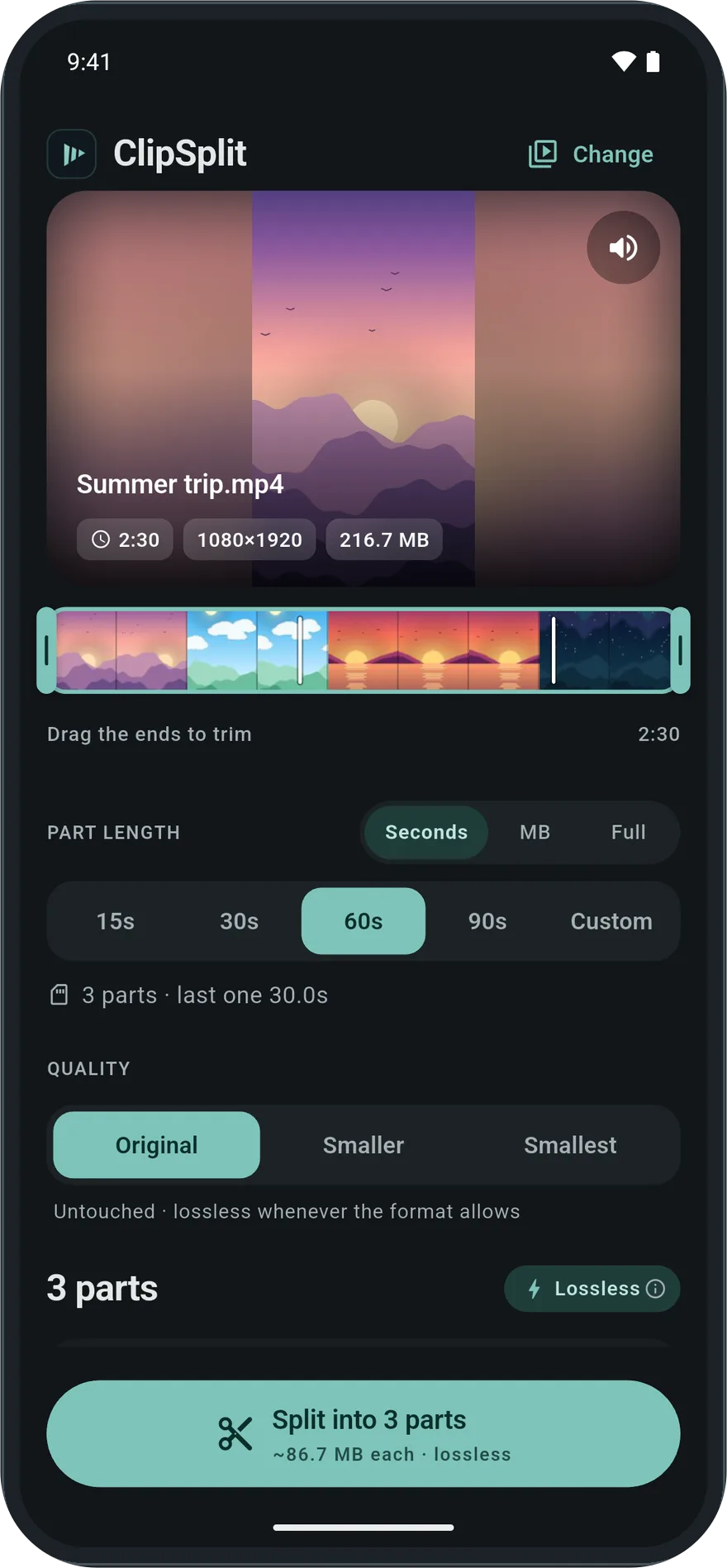
One tap for the lengths status updates, stories and reels allow, or drag to any length from 5 seconds. You see how many parts you will get, and where each one starts, before you split.
- 15 s
- 30 s
- 60 s
- 90 s
- Any length
Split · Trim · Compress
ClipSplit cuts a video into parts by seconds or by MB in about a second, in the same quality you filmed it. No watermark, nothing uploaded.
Free · Android · No account needed
On a computer?Scan with your phone's camera.
How it works
Pick one from your gallery, or share it to ClipSplit from any app. Only that video is opened.
Tap 15, 30, 60 or 90 seconds, drag to any length, or choose a size in MB. The parts preview at once.
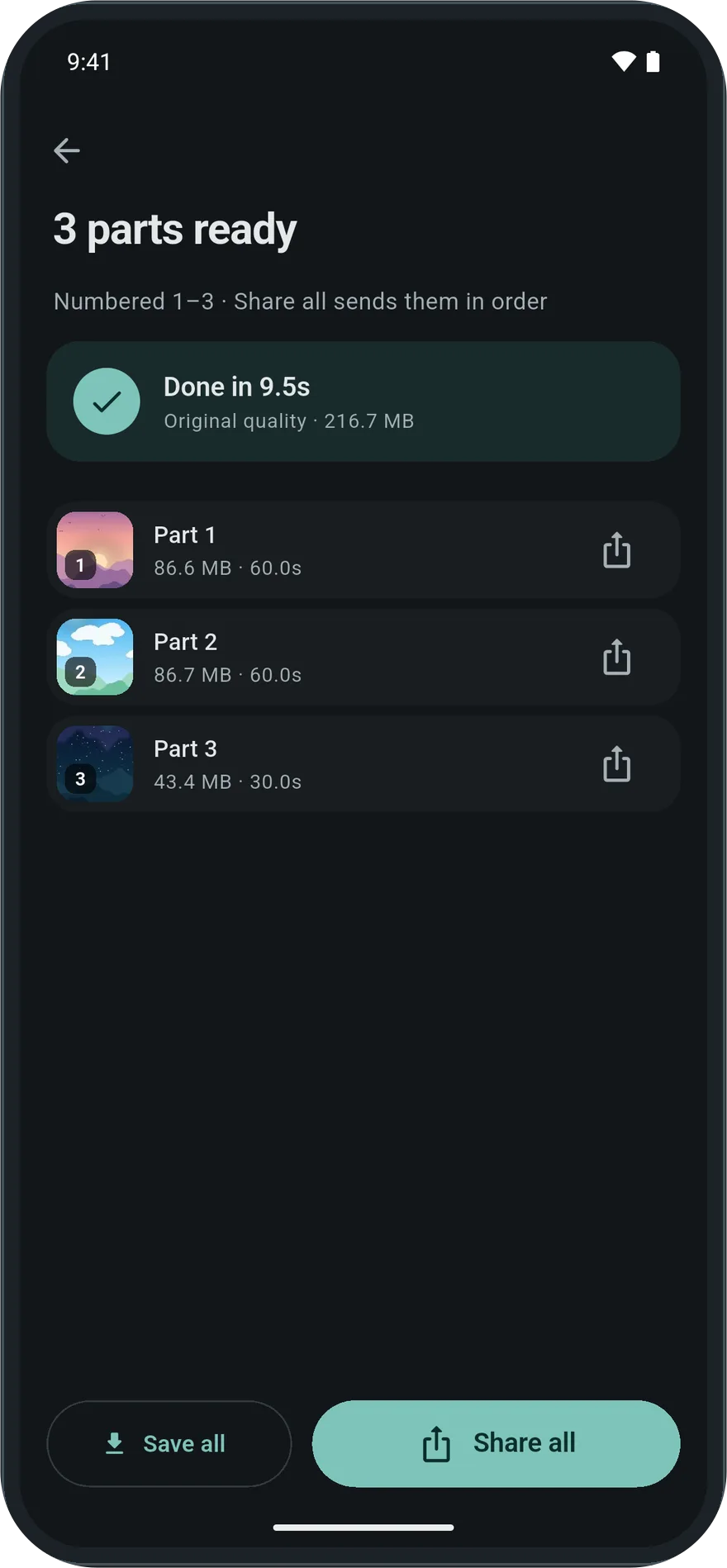
Most videos are done in about a second. Save every part to your gallery or share them in order.
Features
No timeline to scrub and no export settings to puzzle over. ClipSplit does the cuts people make every day, and gets out of the way.
One tap for the lengths status updates, stories and reels allow, or drag to any length from 5 seconds. You see how many parts you will get, and where each one starts, before you split.
Parts are copied straight from your video, not re-encoded, so a 4K clip stays 4K and nothing goes soft. If a clean cut isn't possible, Exact mode steps in by itself.
Choose 10, 16, 25 or 50 MB and every part stays under it. Made for apps that cap how big a file can be.
Split a video by MB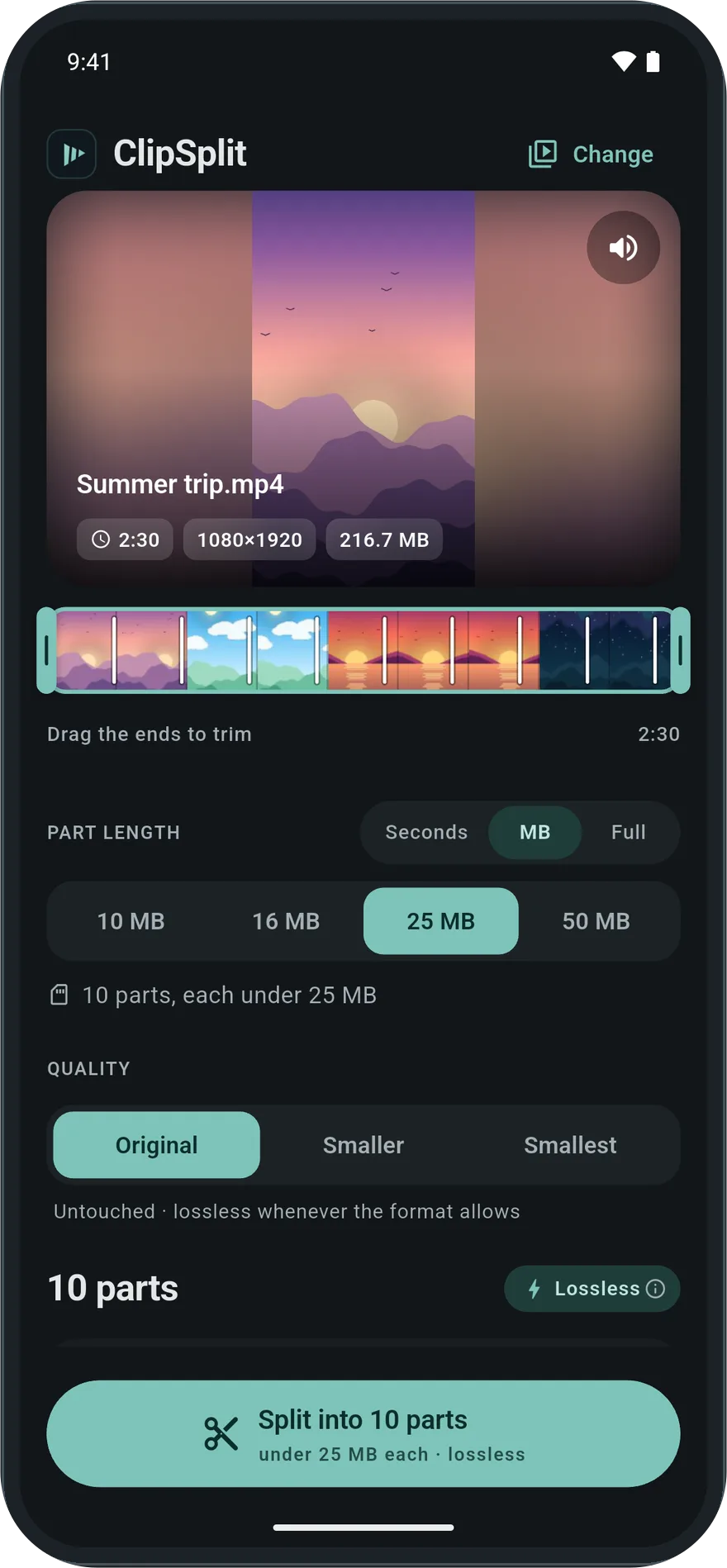
Make a video smaller in one file at 720p or 480p, and see how many percent you saved before you start.
Compress a video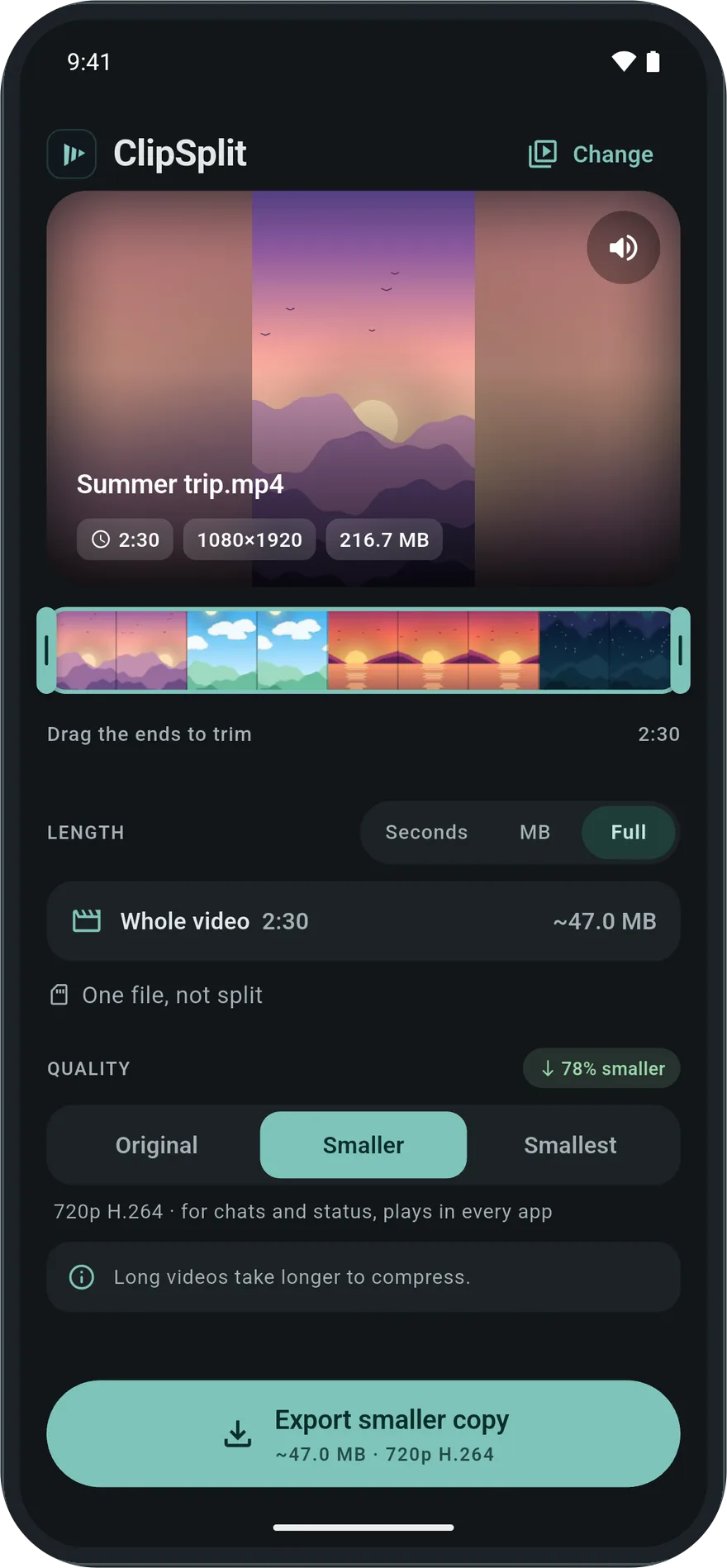
Drag the handles to cut the start and end off, then split what is left or keep it as one video.
Trim a video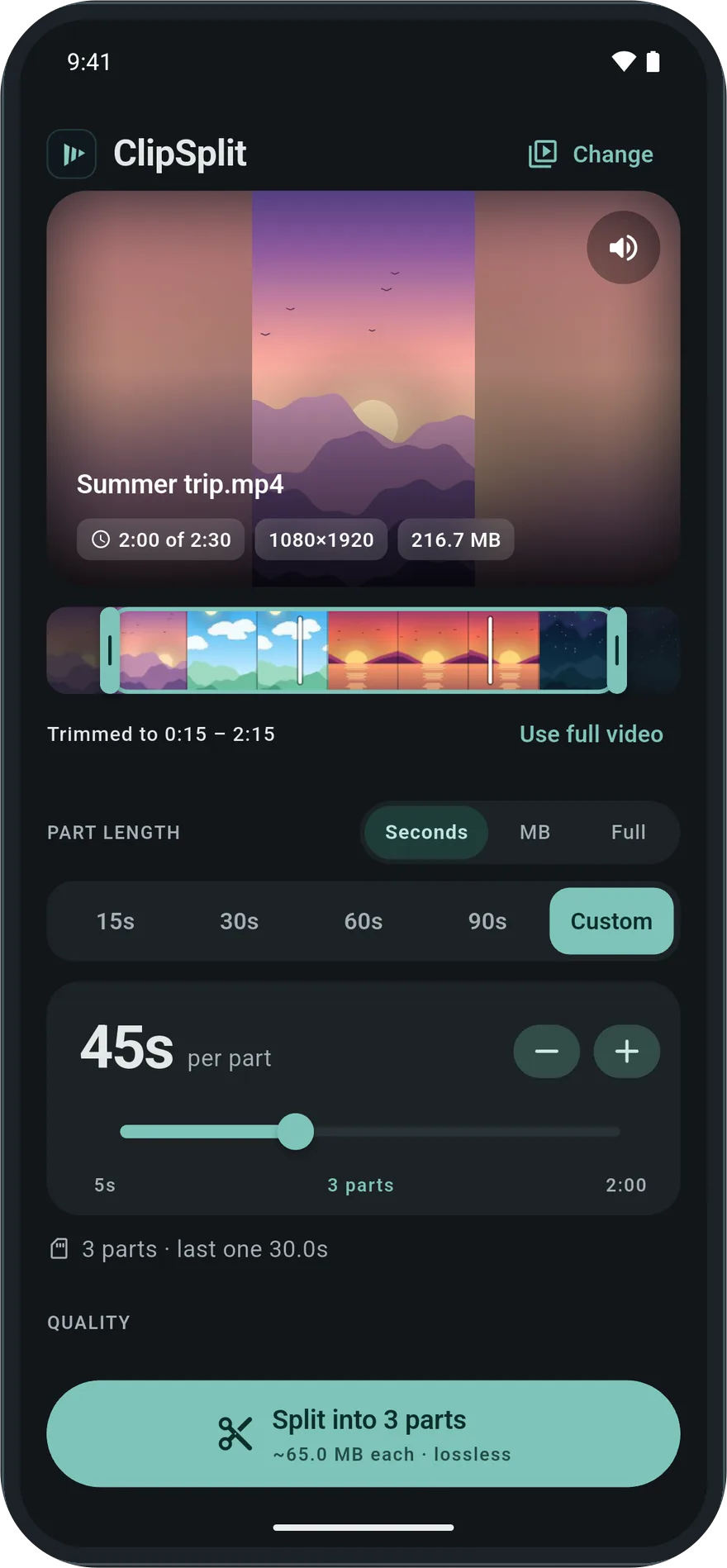
One switch and every part comes out silent, with the picture untouched.
Remove audio from a video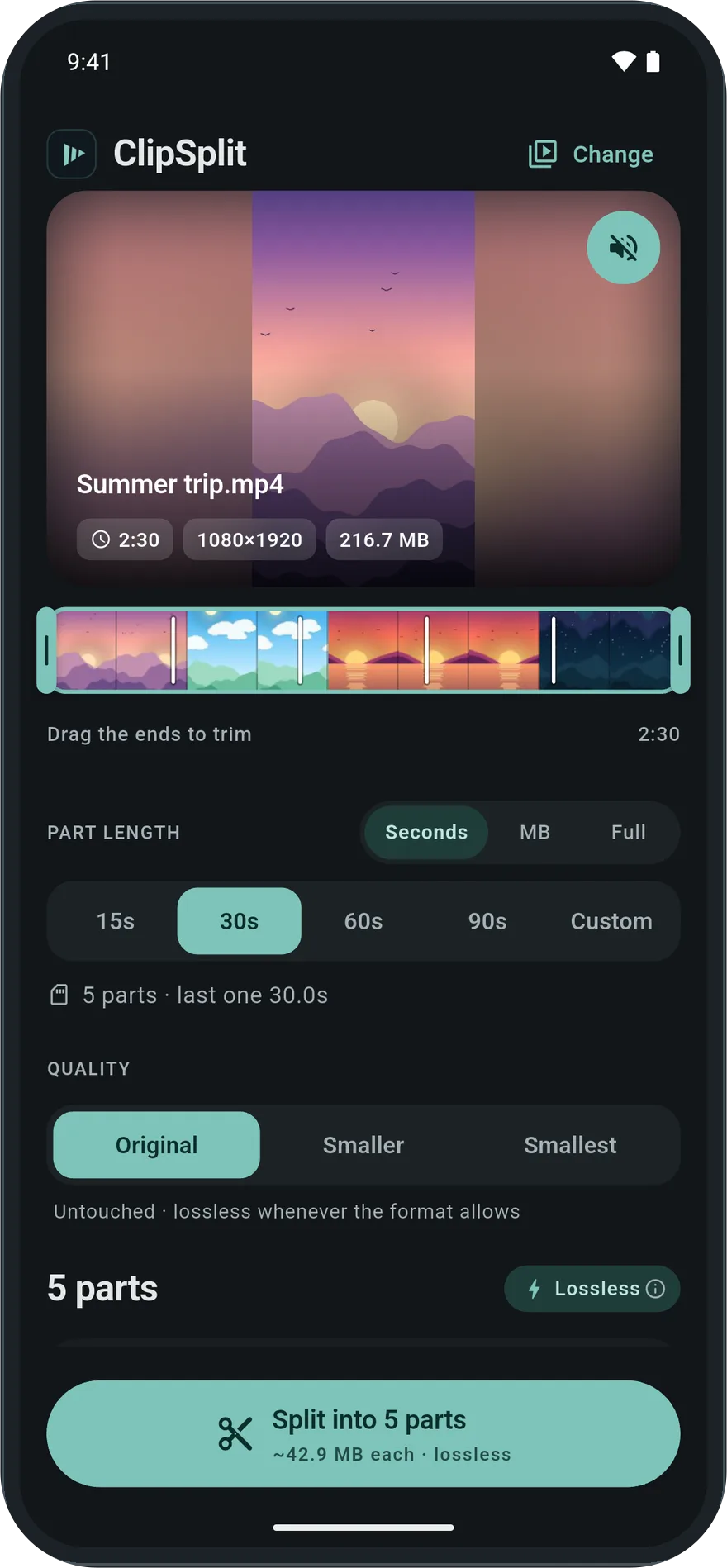
Parts come out numbered with their times, so you always post them in the right order. Save them all to your gallery in one tap, or share them straight to the app you're posting in.
Uses
Post a long video as status parts that each fit the time limit.
Read moreTurn one long clip into a numbered series of stories or reels.
Read moreCut a big video into parts under 10, 16, 25 or 50 MB.
Read moreMake a video smaller to send, and see how much you saved.
Read moreCut the start and end off a video in a few seconds.
Read moreMute a video in one tap, as one file or in parts.
Read moreCut video into parts with no re-compression, up to 4K.
Read moreCost
Ads keep ClipSplit free. There is no subscription, no paid version and nothing locked behind one.
Privacy
Splitting, trimming and compressing all happen on the device. ClipSplit opens videos through Android's photo picker, so it only ever sees the one you choose, and there is no account. More in the privacy policy.
Read about ClipSplit in Arabic, Spanish, Hindi, Indonesian, Portuguese or Turkish.
Open ClipSplit, tap Choose a video and pick one. Tap a length (15, 30, 60 or 90 seconds) or drag to any length you like, check the preview of the parts, then tap Split. The parts are numbered and can be saved to your gallery or shared in order.
Not on Original. ClipSplit copies the video as it is into shorter parts, with no re-compression, so the resolution, sound and colours stay exactly the same, up to 4K. Quality changes only if you choose Smaller or Smallest to make the file lighter.
ClipSplit is free and supported by ads. It never puts a logo or watermark on your videos, and there is no paid version that removes one, because there is nothing to remove.
Yes. Choose MB and pick 10, 16, 25 or 50 MB. ClipSplit shows how many parts to expect, then cuts the video so each part stays under that size. It is the quickest way to send a big video through an app with a file size limit.
Choose Full, then pick Smaller (720p) or Smallest (480p). ClipSplit shows how many percent smaller the video will be and saves it as one file. Compressed videos are H.264, so they play almost everywhere.
No. Splitting, trimming and compressing all happen on your phone. ClipSplit uses Android's photo picker, so it only sees the one video you choose, and there is no account or sign-up.
Split, trim and compress in seconds, in the quality you filmed. Free on Android.