 ClipSplit
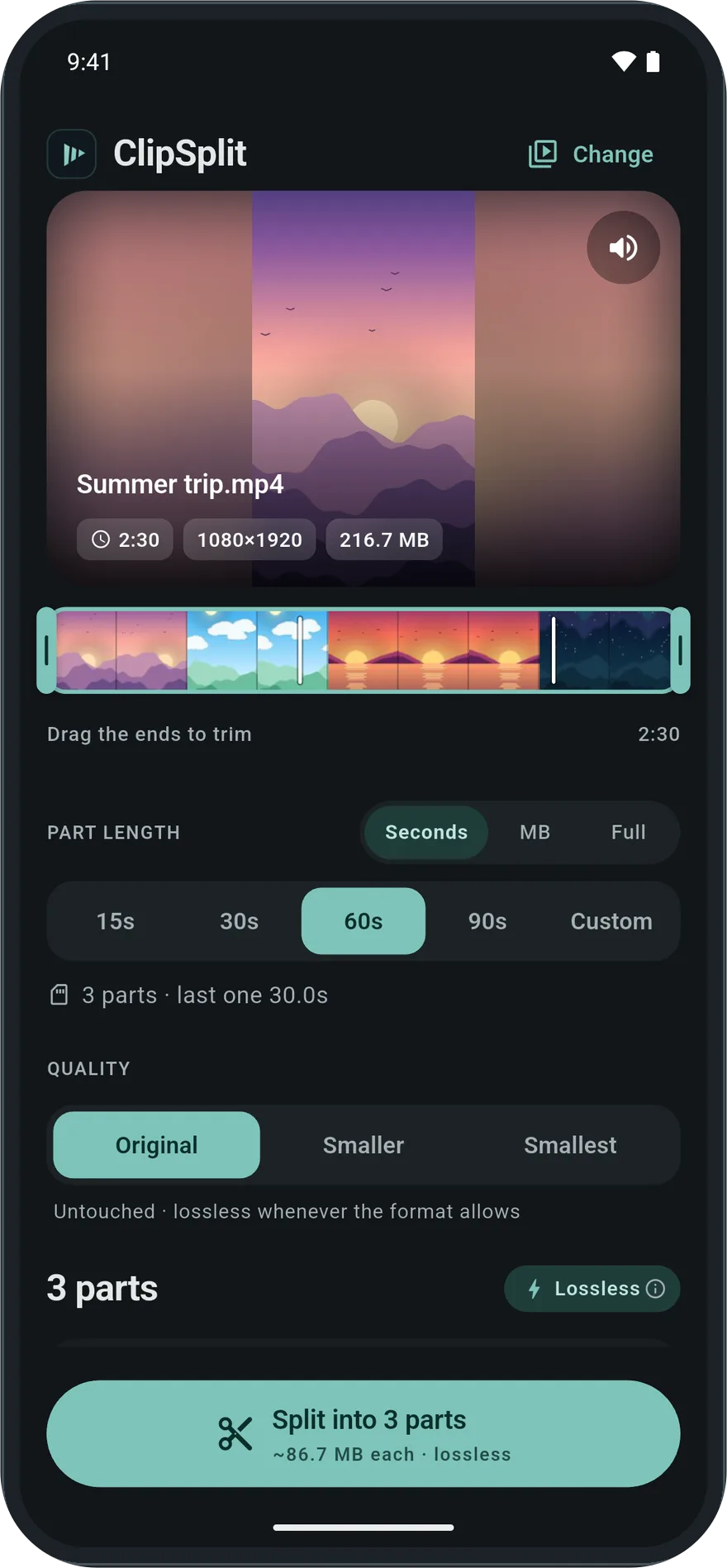
Every part fits, none gets cut off
When a video is longer than your status allows, the app either trims it for you, losing the rest, or makes you cut it by hand. ClipSplit does the cutting in one step: choose the length your app allows and the whole video is divided into parts of that length, start to finish.
Limits differ between apps and change over time, so ClipSplit offers 15, 30, 60 and 90 seconds with one tap, plus a slider for any length from 5 seconds. If your app allows 90 seconds this year and 60 the next, you pick a different button.
See the parts before you split
As soon as you pick a length, ClipSplit shows how many parts you will get and a thumbnail of where each one starts. Change the length and the preview updates at once, so you can choose the split that ends on a good moment instead of mid-sentence.
Same quality as the original
On Original, the parts are copied straight from your video: no re-compression, no blur, no watermark. A clip filmed in 1080p or 4K stays that way. Most videos are done in about a second, even long ones.
How to split a video for status
- Choose the video
Open ClipSplit, tap Choose a video and pick the clip from your gallery. You can also share it to ClipSplit from another app.
- Pick the length
Tap 15s, 30s, 60s or 90s to match your status limit, or Custom to drag to any length.
- Tap Split
The parts are ready in seconds, numbered 1, 2, 3 and so on.
- Post them in order
Tap Share all to send them to your status app in order, or Save all to keep them in your gallery.
Good to know
- If you are unsure of your app's limit, try a status with a long video once: the point where it stops is the limit.
- A slightly shorter length than the limit, say 55 seconds for a 60-second status, leaves room if your app counts differently.
- Trim the start and end first if the video has dead time, so no part is wasted on it.