 ClipSplit
Two sizes, no settings to learn
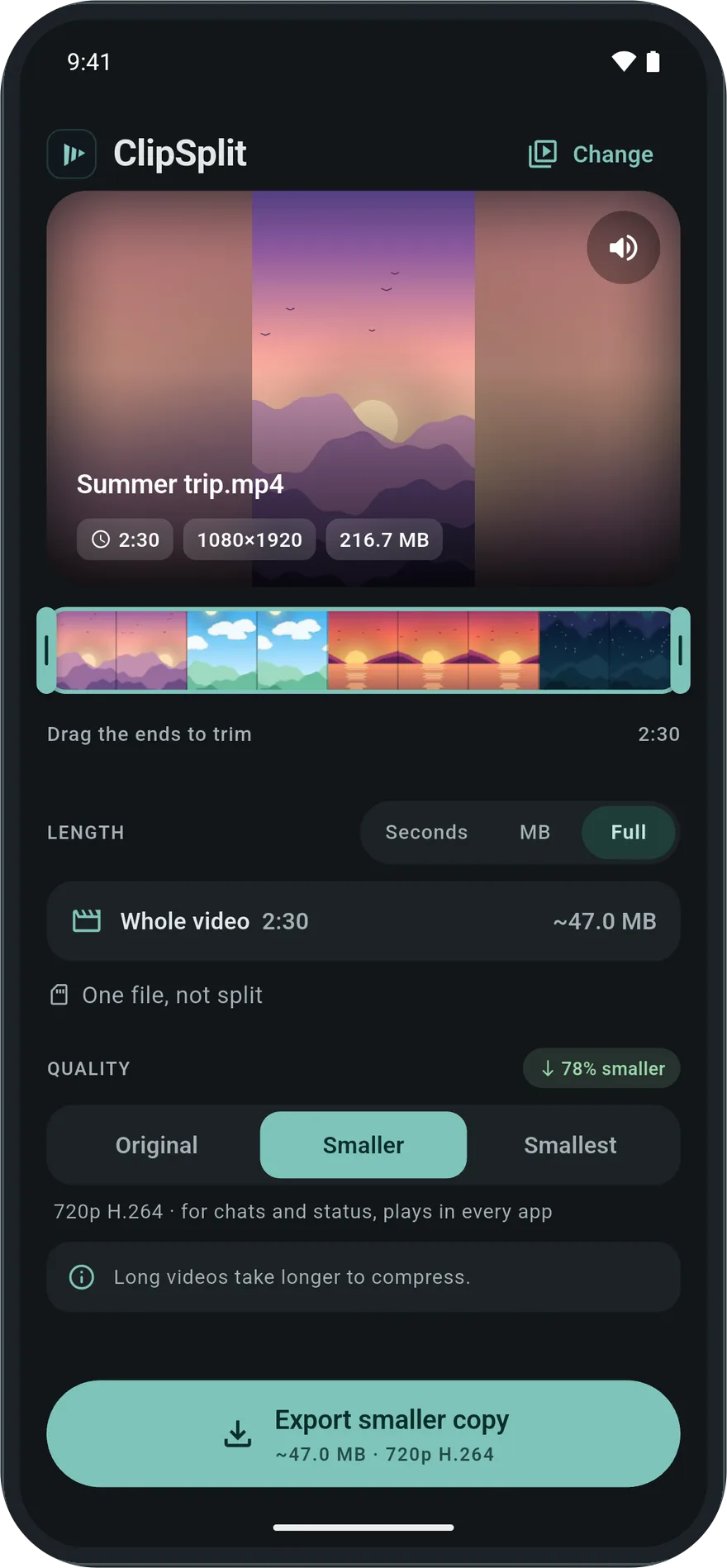
Video compressors usually ask about bitrates, codecs and frame rates. ClipSplit asks one question: Smaller (720p) or Smallest (480p). Smaller suits most chats and still looks sharp on a phone. Smallest is for when the size matters more than the detail.
Before you start, ClipSplit estimates the new size and shows how many percent smaller the video will be, so you know whether it will fit.
One file, or parts that are smaller too
Choose Full to keep the video in one piece. If it still needs to be split, for a time or size limit, the same quality choice applies to every part.
Plays almost everywhere
Compressed videos are saved as H.264, the format nearly every phone, browser and app can play. Compression happens on your phone and takes longer than a split, because every frame is re-encoded.
How to compress a video on Android
- Choose the video
Open ClipSplit and pick the video you want to make smaller.
- Choose Full
Switch from Seconds to Full so the video stays in one file.
- Pick the quality
Tap Smaller (720p) or Smallest (480p) and check how much smaller it will be.
- Compress and save
Start it, keep the app open while it works, then save or share the smaller file.
Good to know
- If the video is already 720p or smaller, Smaller may save little. ClipSplit tells you when that is the case.
- Trim the start and end first: every second you remove is a second that does not need compressing.
- Removing audio saves a little more space if the sound is not needed.