 ClipSplit
Post the whole video, part after part
A concert, a trip, a tutorial or a long story you filmed in one take rarely fits in a single story. Cutting it into equal parts by hand means scrubbing a timeline and exporting each piece one at a time. ClipSplit makes all the parts at once, from one tap.
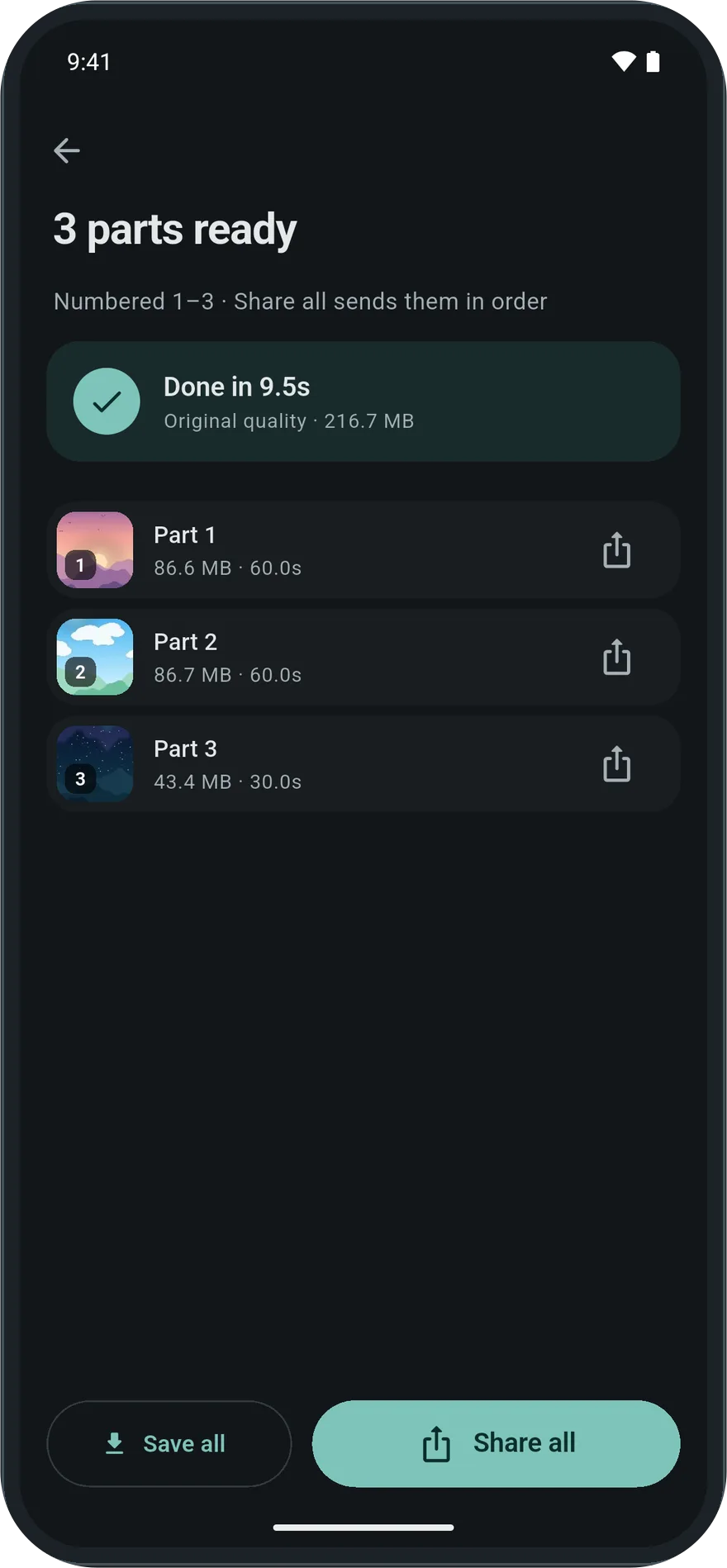
Parts are numbered and shared in order, so a series of stories plays back the way you filmed it.
No watermark, no quality loss
Many free video apps stamp their logo on what you export. ClipSplit never does. On Original the parts are an exact copy of your video's picture and sound, in the same resolution, so nothing looks softer once it is posted than it did in your gallery.
Choose where the cuts fall
The preview shows a thumbnail at the start of every part. If a cut lands in an awkward place, try a slightly different length with the custom slider, or trim a few seconds off the start, and watch the cut points move before you commit.
How to split a video into story or reel parts
- Open the video in ClipSplit
Tap Choose a video, or share the video to ClipSplit from your gallery.
- Pick the part length
Choose the length your story or reel allows, or drag the custom slider.
- Check the preview
Look at the thumbnails to see where each part starts and how many you will post.
- Split and share
Tap Split, then Share all to post the parts in order, or Save all to post them later.
Good to know
- Stories are usually vertical. If your clip is horizontal, it will be posted with bars or cropped by the app you post to; ClipSplit keeps the original shape.
- For a series of reels, a cut on a pause or a scene change feels more natural. Use the custom length to move the cuts.
- Removing audio is one tap if you plan to add music in the app you post to.