 ClipSplit
One tap, picture untouched
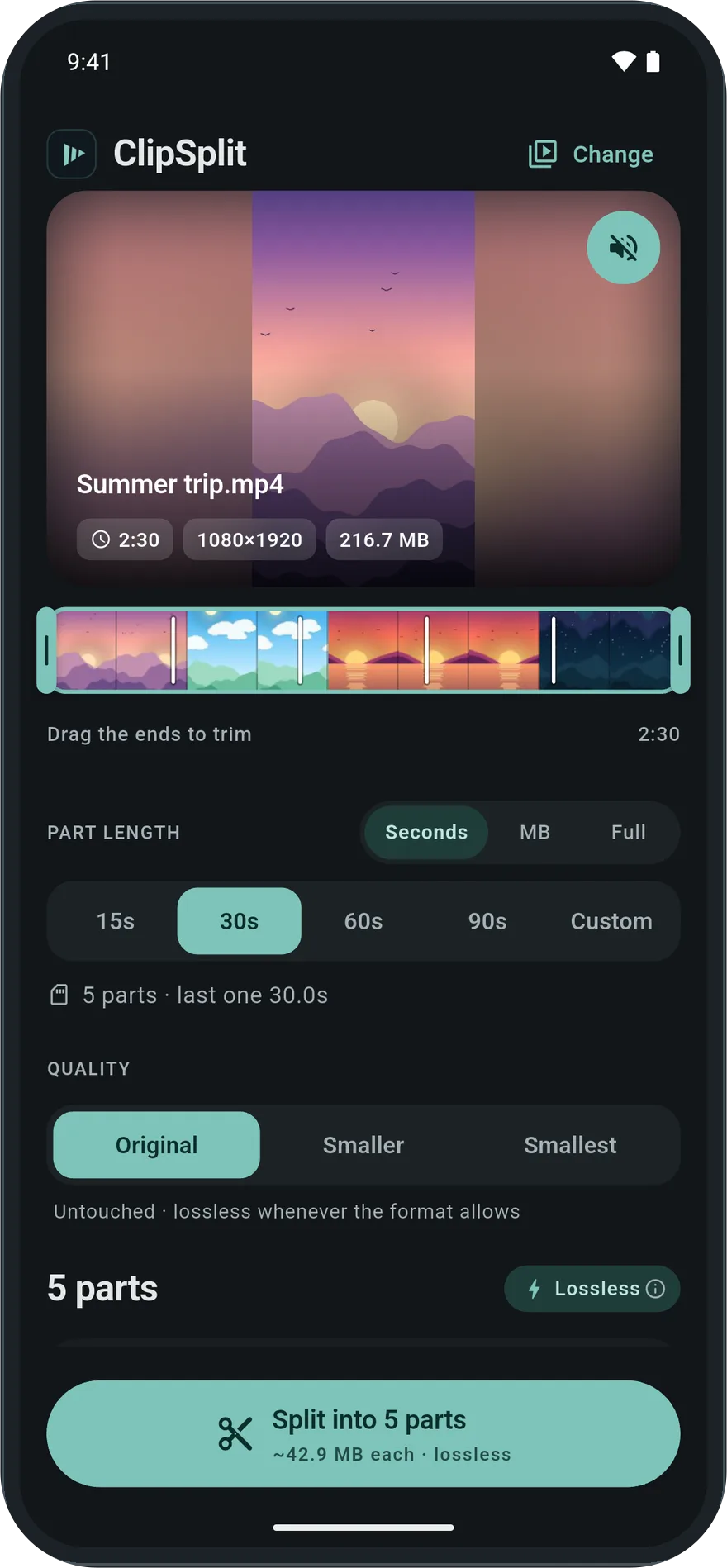
Remove audio drops the sound track and leaves the picture as it was. On Original nothing is re-encoded, so the muted video looks exactly like the one you started with.
Works with every other option
Mute a whole video with Full, or mute while splitting so every part is silent. Combine it with Smaller or Smallest if you are also trying to save space.
How to remove audio from a video
- Choose the video
Open ClipSplit and pick the video.
- Turn on Remove audio
Tap the Remove audio control. ClipSplit confirms the parts will be silent.
- Choose Full or a length
Keep one silent video with Full, or pick a length to get silent parts.
- Save or share
Tap Split, then save or share the result.
Good to know
- Removing audio also makes the file slightly smaller.
- Tap the control again to keep the original sound.