 ClipSplit
A quick cut, not a project
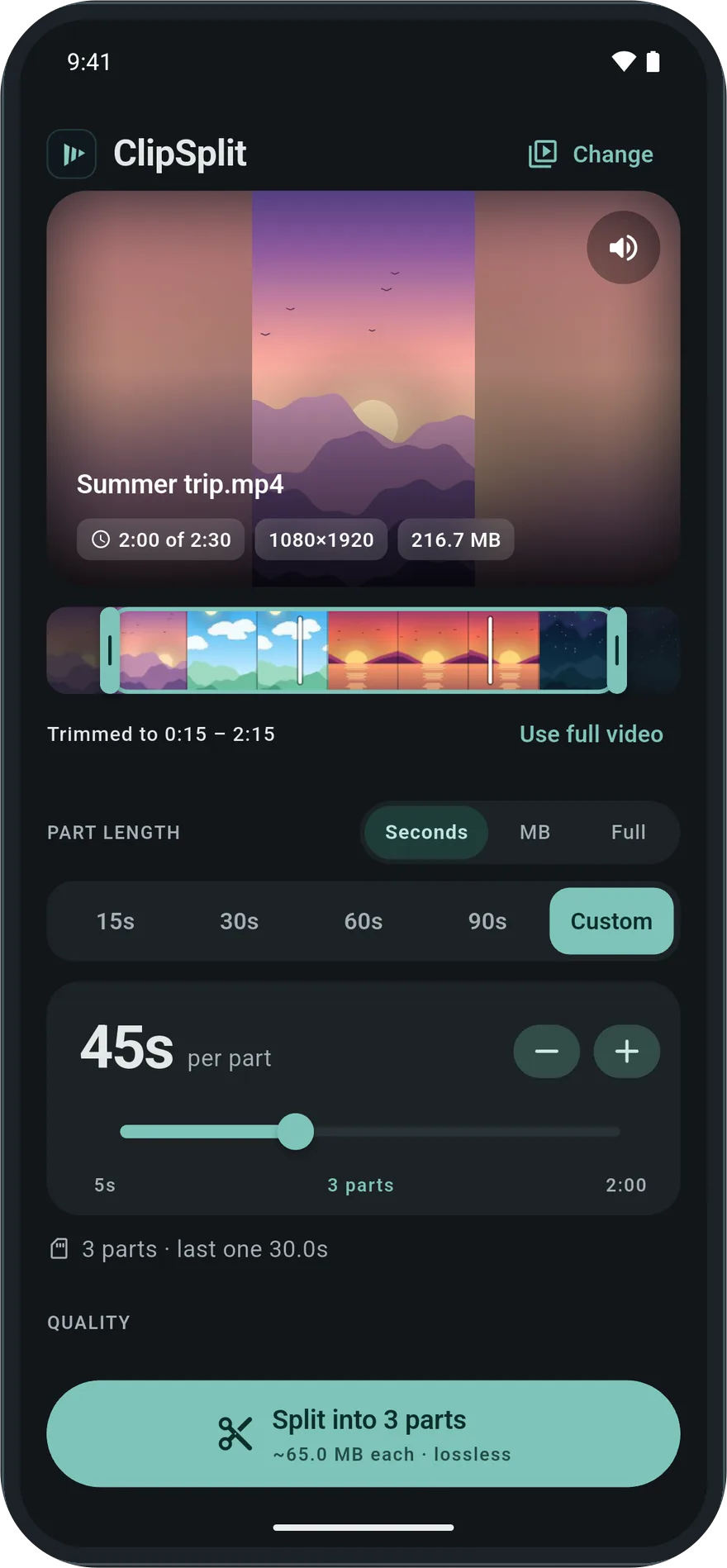
Full video editors are built for timelines, layers and effects. When you only need to lose the fumbling at the start and the reach for the phone at the end, that is a lot of app for two cuts. ClipSplit opens straight to your video with a handle at each end.
Trim, then split if you need to
Once trimmed, the rest of ClipSplit works on just that section. Choose Full to save it as one video, or a length or size to split the trimmed part. The preview updates as you drag, so you can see how many parts are left.
How to trim a video on Android
- Choose the video
Open ClipSplit and pick the video, or share it to ClipSplit from your gallery.
- Drag the handles
Move the start handle to where the video should begin and the end handle to where it should stop.
- Keep it whole or split it
Choose Full to keep one video, or a length to split what is left.
- Save or share
Tap Save all or Share all when it is done.
Good to know
- On Original, a trim keeps the full quality of the video.
- Trimming first makes compression faster, because there is less video to encode.